

Managing an organisation and contacts in the ODC Business Service
Organisation Administrators can manage their organisation account and contacts for ODC Business Services in the Health Business Services (HBS) portal.
This guide helps you to:
- update your organisation details
- manage your contacts
- assign system roles.
Who can perform these functions in the ODC Business Service
You need to have an Administrator system role to perform these functions. This role is initially allocated on completion of an organisation or individual registration form process.
How to update organisation details
Organisation details can be updated by navigating to the ‘My organisation’ page.
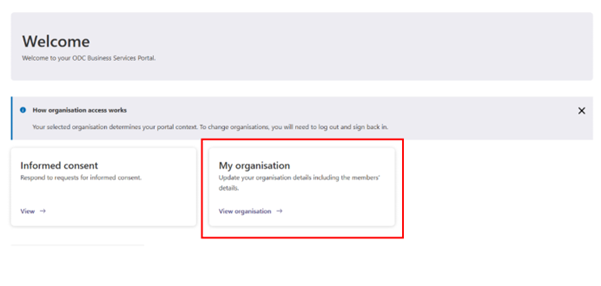
- From the ‘ODC Home’ page, click ‘View organisation’ on the ‘My organisation’ . Alternatively, click ‘My organisation’ on the side menu.
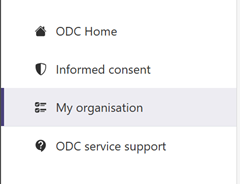
Screenshot of the side menu, showing the My organisation button.
- Once selected, the ‘My organisation’ page will open.
- To edit the organisation’s details, select the edit icon on the top right corner of the ‘Organisation details’ card.
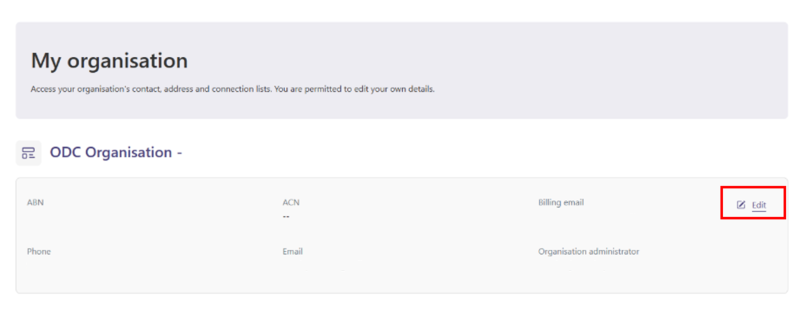
This opens the ‘Edit organisation details’ page.
You can edit key details related to your organisation on this page.
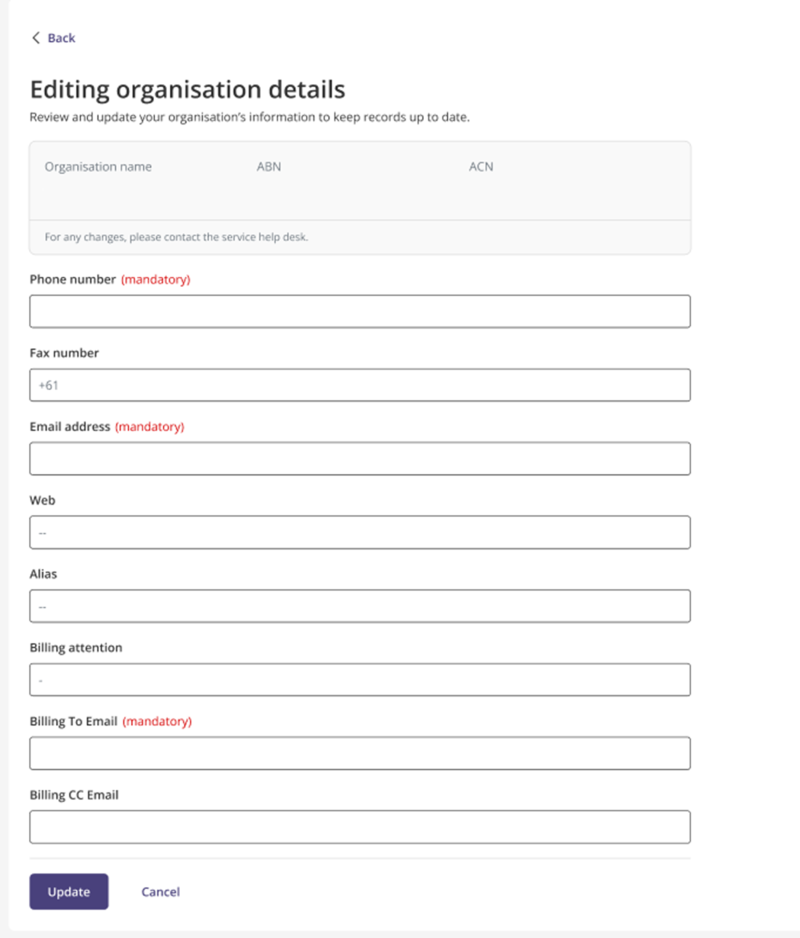
- Make any changes you need.
- To save, click the ‘Update’ button at the bottom of the page. To discard your changes, click ‘Cancel’.
- After updating, you will return to the ‘My organisation’ page.
Manage your contacts
Administrators are responsible for managing their organisation’s contacts.
Administrators can:
- add contacts
- deactivate contacts
- activate inactive contacts
- edit a contact’s details (excluding given name, family name and email address)
- assign system roles to contacts.
These functions are all performed from the ‘My contacts’ page.
How to manage your contacts
Navigate to the ‘My organisation’ page. See How to update organisation details for help.
- From the ‘My organisation’ page, click ‘View all’ on the ‘Manage contacts’ card found at the bottom of the page.
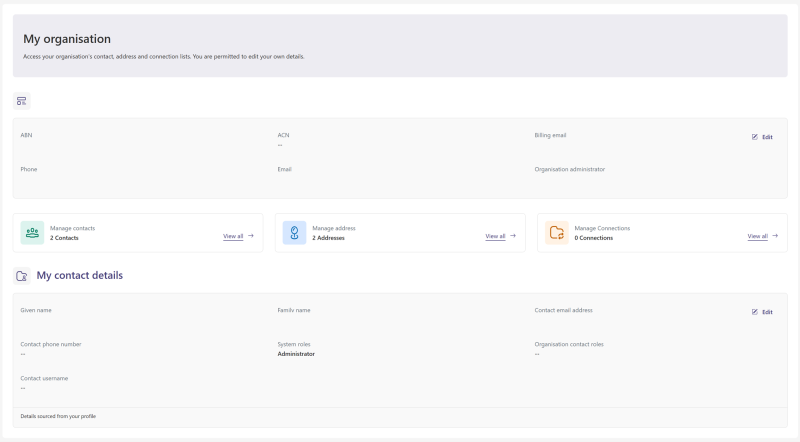
- The ‘My contacts’ page will open, defaulting on the ‘Active contacts’ view.
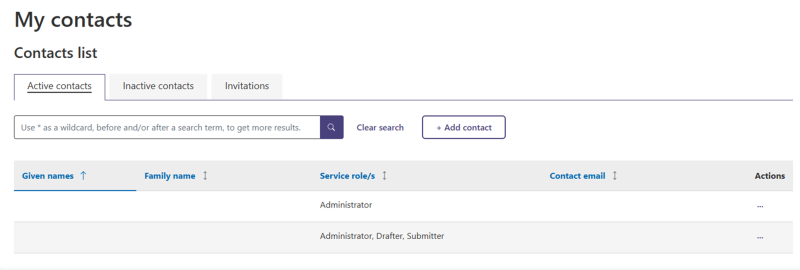
Screenshot of ‘My contacts page’ showing the three tabs under contacts list. The ‘Active contacts’ tab is selected.
There are three tabs within the ‘My contacts’ page:
- Active contacts – this contains a list of active contacts for your organisation.
- Inactive contacts – this contains a list of deactivated contacts.
- Invitations – this view enables you to track the status of any current invitations sent as part of the service invitation process.
Add contacts
- From the ‘My contacts’ page, click the ‘Active contacts’ tab.
- To the right of the search bar, click the ‘+ Add contact’ button. For help, see step 3 under How to manage your contacts.
- The ‘Adding new contact’ page will open. Here you can add the details of a new contact.
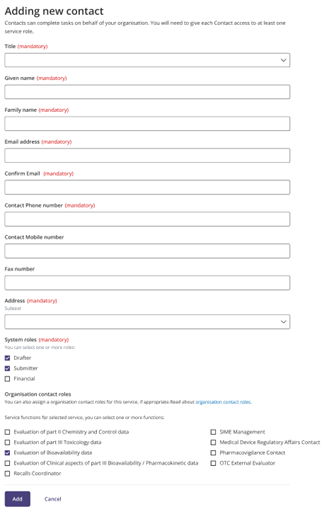
- Once you have finished entering information click the ‘Add’ button at the bottom of the page. To discard the information, click ‘Cancel’.
Please note that once you add a contact, you won’t be able to further edit the given name, family name and email address once the contact has been added.
Contacts added with no system role
Contacts that have been added with no system roles assigned to them will not be invited to access the portal. They cannot access the portal or the ODC Business Service until they are assigned a system role.
They will appear within the ‘Active contacts’ tab as a listed contact for the organisation.
Contacts added with one or more system roles
Contacts that have been added with one or more system roles assigned to them will be formally invited to access the portal.
They will appear within the ‘Active contacts’ tab as a listed contact for the organisation.
Deactivate contacts
If you need to remove contacts from the organisation, you must deactivate their active status.
- Navigate to the ‘Active contacts’ tab from the ‘My contacts’ page. See How to manage your contacts for help.
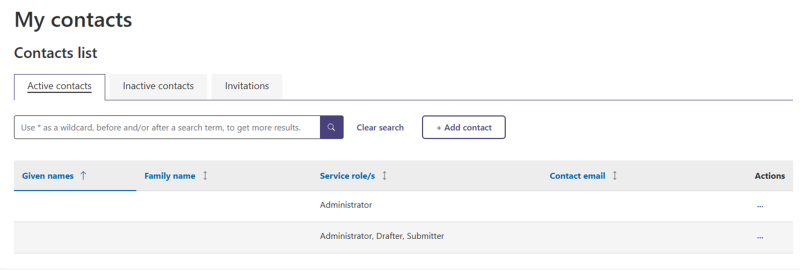
- Find the active contact you wish to deactivate.
- To the far right, after the contact’s email details there is a column titled ‘Actions’. You need to open the Actions drop down menu for the contact by selecting the three dots (eclipses icon).
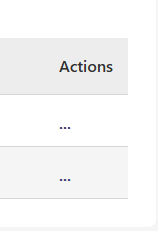
Close up image of the Action column and the eclipses icons.
- Click the three dots (eclipses icon) next to the name of the active contact you wish to deactivate. This will open the Actions dropdown menu.
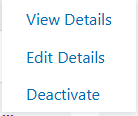
Close up image of the Actions drop down menu.
- Select ‘Deactivate’. You will be prompted to confirm deactivation before proceeding.
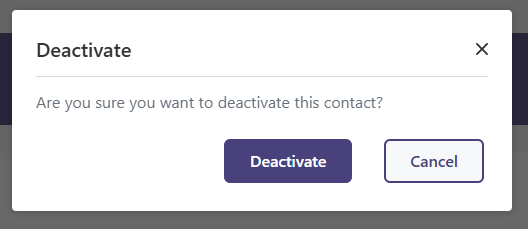
- Click the ‘Deactivate’ button if you wish to proceed. These contacts will then show as ‘Inactive’ and can’t be used as a contact for new drafts and submissions.
Activate inactive contacts
You can reactivate contacts that have been deactivated, now known as ‘Inactive contacts’. Navigate to the ‘Inactive contacts’ tab from the ‘My contacts’ page. See How to manage your contacts for help. The ‘Inactive contacts’ tab is next to the ‘Active contacts’ tab.
- Find the inactive contact you wish to activate.
- To the far right, after the contact’s email details there is a column titled ‘Actions’. You need to open the Actions drop down menu for the contact by selecting the three dots (eclipses icon).
- Click the three dots (eclipses icon) next to the name of the inactive contact you wish to activate. This will open the Actions dropdown menu.
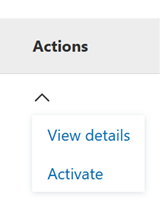
Close up image of Actions drop down menu.
- Select the Activate option. You will be prompted to confirm activation before proceeding.
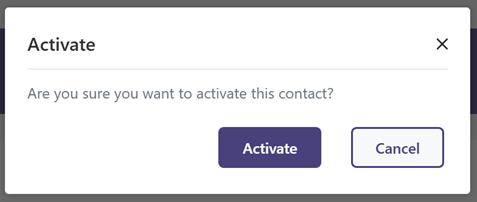
Reactivated contacts do not have system roles assigned.
To enable access for a reactivated contact, you need to assign them a system role.
Once a role has been assigned an invitation will automatically be emailed to them, prompting them to initiate the ODC Business Service linking process.
Edit a contact’s details including system roles
You can edit the details of a contact including assigning them system roles or removing roles.
You cannot edit the details of a deactivated contact, only active contacts can be edited.
Details such as given name, family name and email address cannot be edited by the organisation administrator. To update these details on behalf of a contact you need to email the ODC Business Services help desk at ODC.OrgDetails@health.gov.au.
All contacts with a system role can update their own contact information excluding given name, family name and email address.
- Navigate to the ‘Active contacts’ tab from the ‘My contacts’ page. See How to manage your contacts for help.
- Find the active contact you wish to edit the details of.
- To the far right, after the contact’s email details there is a column titled ‘Actions’. You need to open the Actions drop down menu for the contact by selecting the three dots (eclipses icon).
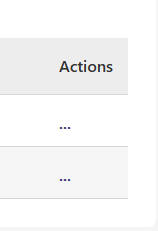
Close up image of the Action column and the eclipses icons.
- Click the three dots (eclipses icon) next to the name of the active contact you wish to deactivate. This will open the Actions dropdown menu.
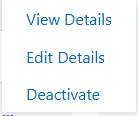
Close up image of the Actions drop down menu.
- Select ‘Edit Details’. This will load the ‘View/Edit Contacts’ window.
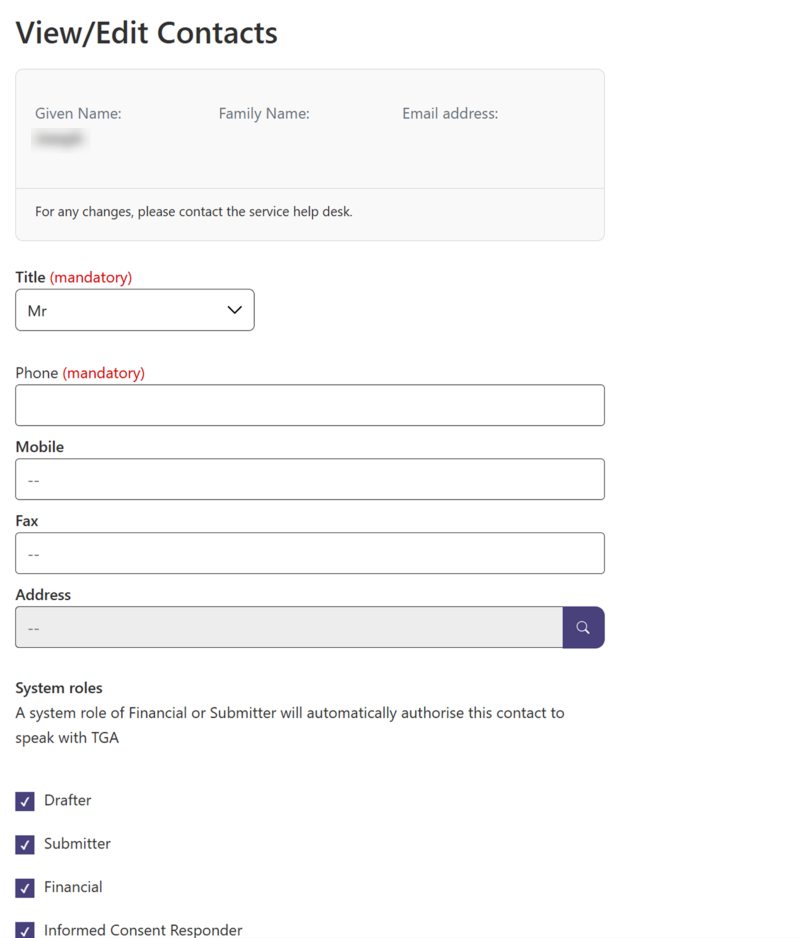
- Make any required changes to the contact’s details. This includes selecting or deselecting a system role for the contact.
- Once changes have been made, click the ‘Update’ button at the bottom of the page. The user will return to the My contacts page, and the success banner will indicate if the contact has been updated successfully.
About system roles
If a contact hasn’t been assigned a role previously, once a role has been assigned, a formal invitation to access the portal will automatically be emailed to them.
This email prompts the contact to link a Health Business Services (HBS) identity to the ODC Business Service. For more information see: Accepting an invitation.
If no system role is assigned to a contact, they will not be able to access the portal.
Each system role has different levels of access and permissions associated with it. Contacts can have multiple system roles assigned to them.
Removing system roles will also remove associated access and permissions.
Removing all system roles from a contact removes their functional access to the portal.
For more information about system roles and associated responsibilities see: System roles within the ODC Business Service.