

Manage your drafts and submissions
Access and manage draft or submitted applications in ODC Business Services by having the appropriate HPRG Drafter or Submitter system roles.
You can have more than one system role assigned. Roles are assigned by a user with the Administrator role. For more information, see ODC terminology.
Access drafts
Note: This option is only available if you have the Drafter system role.
From the ODC Business Service homepage, select “View drafts” on the Drafts card, or choose “Drafts” from the side menu.
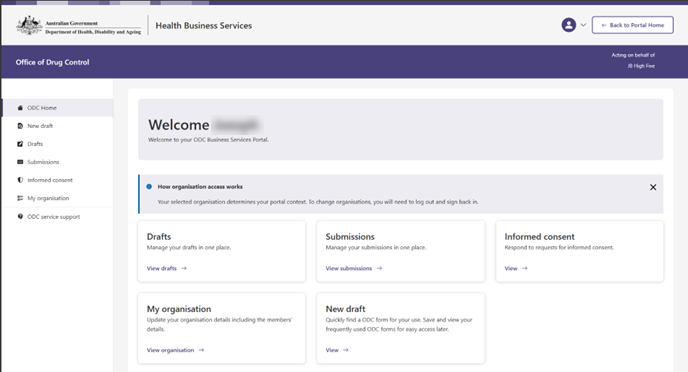
Screenshot of the ODC Business Services homepage. Allow a few moments for the “Drafts” page to load.
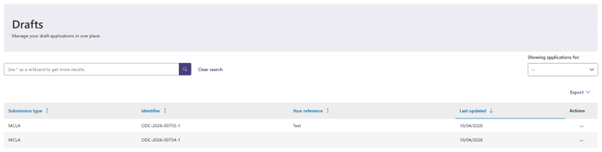
Screenshot of the 'Drafts' page.
Resume a draft
- On the “Drafts” page, find the form or application you want to resume.
In the Actions column, select the three dots (ellipsis) next to the draft to open the menu.
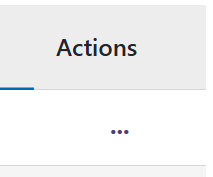
Close-up image of the three dots (ellipsis) used to open the Actions dropdown menu.
- Select “Edit”.
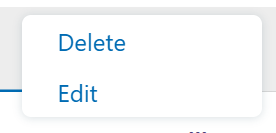
Close-up image of the Actions drop down menu.
The draft will open at the most recently saved Progress section.
Important: Drafts are not saved automatically. Select “Save for later” at the bottom of each
Progress section to save your work.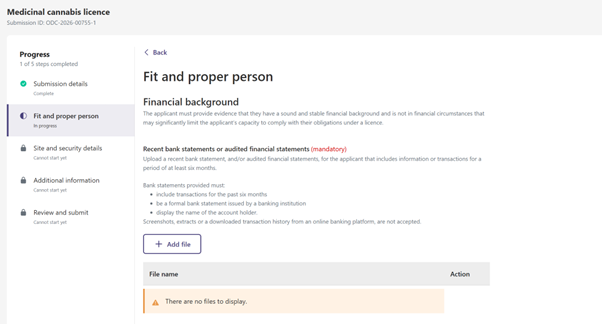
Screenshot of the Medicinal cannabis licence application, opening at the Fit and proper person ‘Progress’ section.
Delete a draft
Select the three dots (ellipsis) next to a draft to open the Actions menu
Select “Delete”.
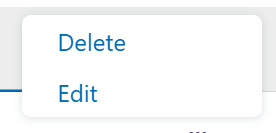
Close up of Actions drop down menu.
Confirm the deletion when prompted or select “Cancel” to return to the Drafts page.
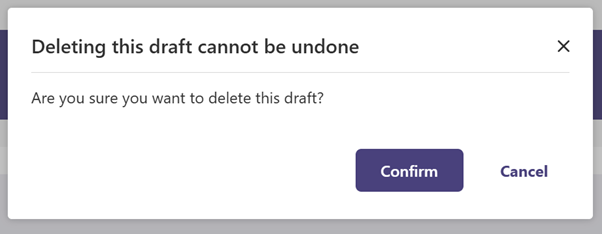
Close up of prompt confirming deletion of the draft.
Export drafts
You can export the drafts list from the “Drafts” page.
- Supported formats: CSV or HTML
- Exports include any filters currently applied.
Navigate to the ‘Drafts’ page from the ODC Business Services homepage. For help see Access drafts. Select the ‘Export’ button above the ‘Actions’ heading to open the Export dropdown menu.
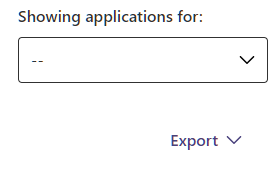
Close up image of the Export button. To export the drafts as CSV, select ‘Export as CSV’. To export as HTML, select ‘Export as HTML’.
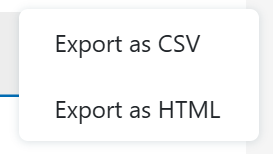
Close up of Export dropdown menu.
Access submissions
Completed and submitted forms and applications are available on the “Submissions” page.
Note: This option is only available if you have the Submitter system role.
Steps
- From the homepage, select “View submissions” on the Submissions card, or choose “Submissions” from the side menu.
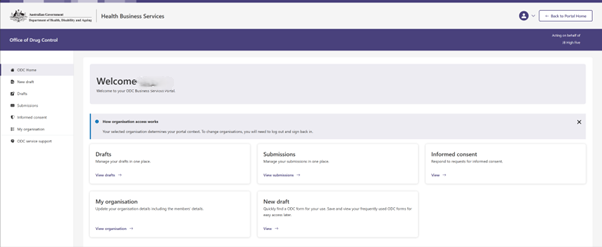
- Allow a few moments for the page to load.
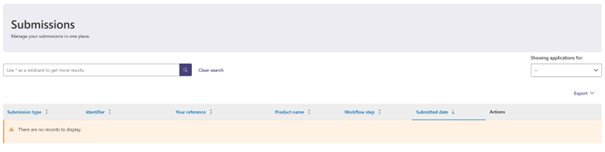
Manage submissions
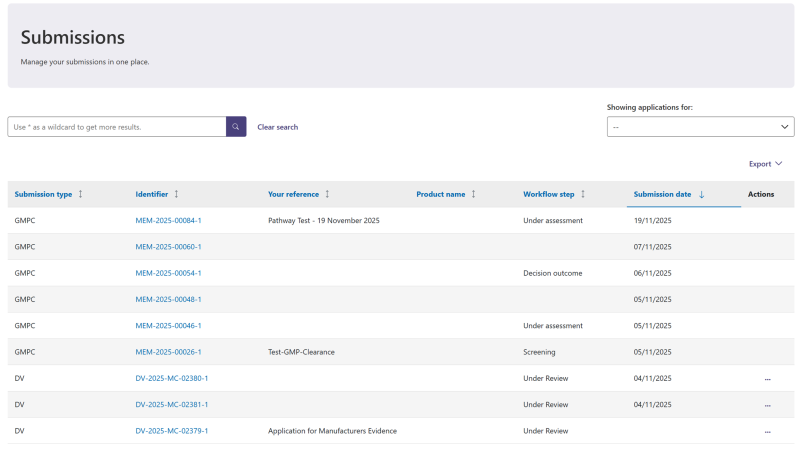
If a form or application has been successfully submitted it will appear on the ‘Submissions’ page.
Export submissions
You can export the submissions list from the “Submissions” page.
Formats: CSV or HTML
Exports include any filters currently applied
Steps
- Open the “Submissions” page.
Select “Export” above the Actions column.

Close-up of the Export button. Choose “Export as CSV” or “Export as HTML”.
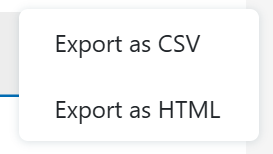
Close up of Export dropdown menu.