

Start a new application or form
The ODC Business Service in the Health Business Services (HBS) portal enables users to draft and submit forms and applications on behalf of their registered organisation.
You need to have successfully registered your organisation and added contacts with system roles before they can draft applications or forms.
See:
Organisation contacts with the following system roles can create and manage drafts:
- Drafter
- Submitter
How to start a new draft application or form
To open the “New draft” page, select the “New Draft” tile on the ODC Business Services homepage, or choose “New Draft” from the side menu.
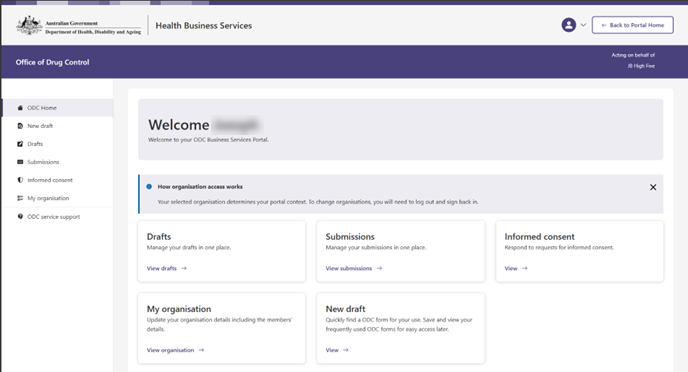
Screenshot of the ODC Business Service homepage. - The “New draft” page will open, where you can view all available forms and applications ready to start.
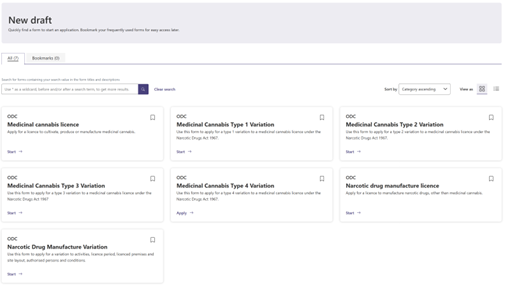
Screenshot of ‘New draft’ page.
- By default, forms and applications are displayed as cards in a grid layout. To switch to a list view, select the grid or list icon next to “View as” in the top-right corner.
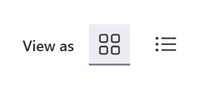
Image of the grid view icon (four small squares) or the list icon (three dots and lines).
- Select “Start” or “View” below the form or application title in grid view or click the form or application name in list view to begin.

Images of forms in grid view as a card, or list view as text.
- After selecting a card or title, the form or application summary page opens, providing key information before you begin.
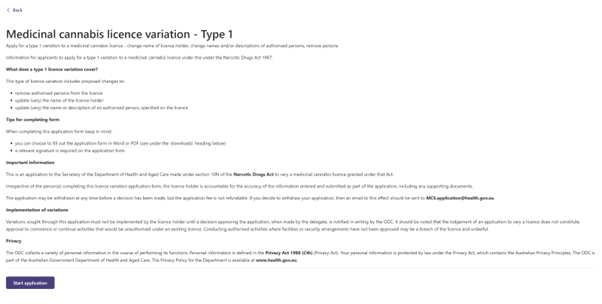
Screenshot of Medicinal cannabis licence variation type 1 summary page.
- Review the information, then select “Start application” when you’re ready to begin. This will create a new draft for the selected form or application.
Drafts are not saved automatically. To save your progress, select “Save for later” at the bottom of each Progress section.
- To return to the “New draft” page, select the “Back” button in the top-left corner. To find and manage your drafts, see Manage your drafts and submissions.
Bookmark frequently used forms
Frequently used forms or applications can be bookmarked for ease of viewing and access.
On the “New draft” page, choose grid view to display forms and applications as cards, or list view to display them as text. For more information, see How to start a new draft application or form (above).
Select the bookmark icon in the top-right corner of a card (grid view) or next to the title in list view.

Image of the bookmark icon when unselected.
After selecting the bookmark icon, it turns black to indicate the form or application has been bookmarked.

Image of the bookmark icon when selected.
To remove a bookmark, select the bookmark icon again so it appears as an outline, indicating it is no longer selected.
- To view your bookmarked forms and applications, select the “Bookmarks” tab on the “New draft” page. The number next to each tab shows how many items are available—either the total in “All” or the number you’ve bookmarked.
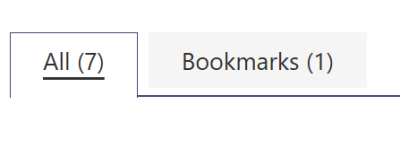
Close up of the tabs at the top of the ‘New draft’ page. The ‘All’ tab is highlighted. Next to it is the ‘Bookmarks’ tab.
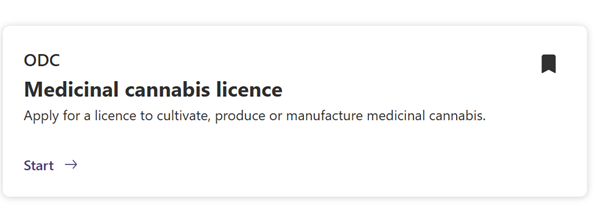
Image of a card showing the Medicinal cannabis licence form as bookmarked.