

Manage organisation invitations
Invitations to join the ODC Business Service allow users to access the ODC Business Services in the Health Business Services (HBS) portal.
Invitations are automatically emailed to users that have been added as a contact and then assigned one or more system roles.
Invitations prompt the contact to accept the invitation and link their Health Business Services (HBS) user profile to the ODC Business Service. Once completed, the contact can access and use ODC Business Services that is associated to their contact and system role.
Contacts with no system role assigned to them will not receive an invitation.
Contacts who have previously been assigned a system role won’t receive a new invitation.
Only Administrators can add contacts and assign a system role.
This guide helps Administrators manage invitations.
Tracking invitations
Invitations can be tracked via the ‘Manage contact’ view:
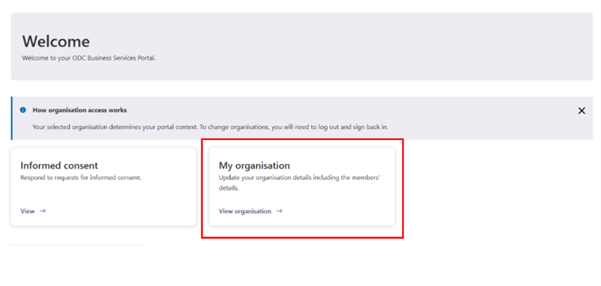
- Navigate to the ‘My organisation’ page from the ODC Business Service homepage by clicking the ‘View organisation’ text within the 'My organisation card’. Alternatively, you can select the ‘My organisation’ menu item in the side bar.
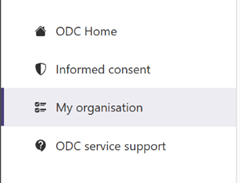
Screenshot of the side menu, showing the My organisation button.
- Once selected, the ‘My organisation’ page will open.
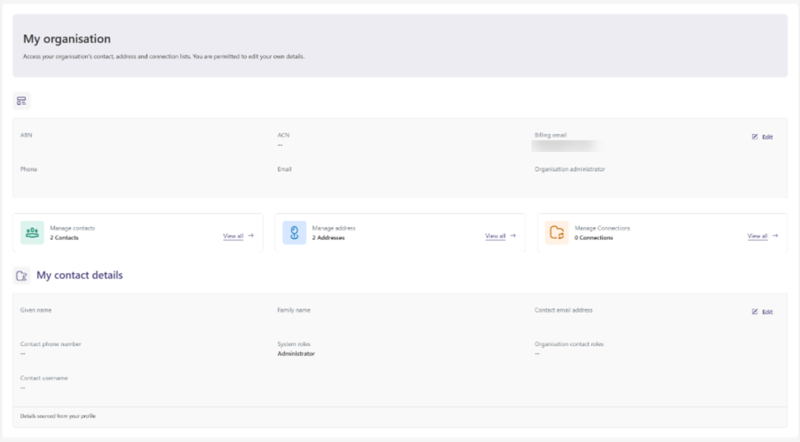
- From the ‘My organisation’ page, click the ‘View all’ text on the ‘Manage contacts’ card.

- The ‘My contacts’ page will open showing the ‘Active contacts’ view.
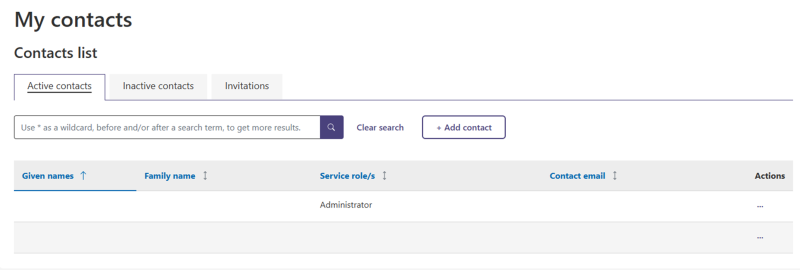
Screenshot of ‘My contacts’ page showing the contacts list and three tabs: ‘Active contacts’, ‘Inactive contacts’ and ‘Invitations’.
- Select the ‘Invitations’ tab to view a list of all active invitations.
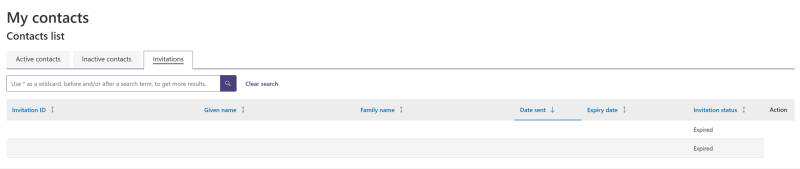
Information in this list shows all active invitations to contacts.
These invitations will remain in this list until they are:
- expired
- cancelled
- rejected
- accepted.
It takes 7 days for a contact invitation to be removed from this list once actioned.
Each invitation has an ‘Invitation status’ seen on the right of the list.
Invitation status can be:
- pending - an invitation has been issued and is pending a response from the contact.
- accepted - an invitation has been successfully accepted by the contact
- rejected - an invitation has been rejected by the contact
- expired - an invitation has expired and is no longer valid
- cancelled - an invitation has been cancelled by an organisation Administrator.
Cancel an invitation
You can only cancel invitations with a ‘pending’ status.
Find the invitation you wish to cancel.
To the far right there is a column titled ‘Actions’. You need to open the Actions drop down menu for the invitation by selecting the three dots (eclipses icon).
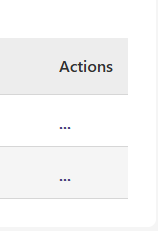
Close up image of the Action column and the eclipses icons.
Once selected, a dropdown menu will appear. Select ‘Cancel’.
- A confirmation message will appear. Select ‘Confirm’ if you wish to proceed, or ‘Cancel’ to return to the Invitations list.
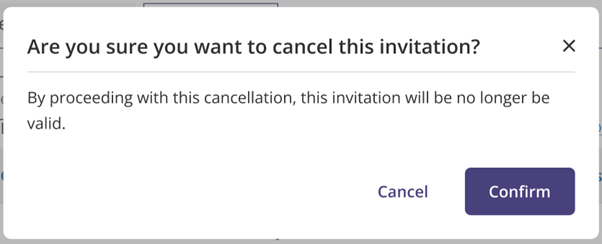
- A successful cancellation message will appear if the invitation is cancelled.

Reissue an invitation
You can reissue an invitation when a contact may not have received the original invitation email.
Any ‘Pending’ invitations awaiting a response from a contact will be subsequently cancelled.
- Navigate to the ‘Active contacts’ tab found on the “My contacts” page. For help see Tracking invitations (above).
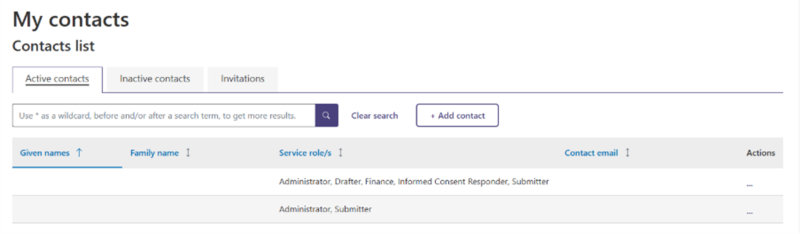
Find the active contact you wish to reissue an invitation for.
- To the far right, after the contact’s email details there is a column titled ‘Actions’. You need to open the Actions drop down menu for the contact by selecting the three dots (eclipses icon).
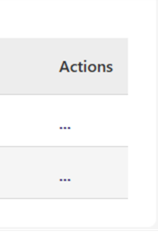
Close up image of the Action column and the eclipses icons.
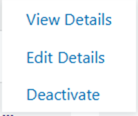
- After selection, a dropdown menu will appear. Select ‘Edit details’.
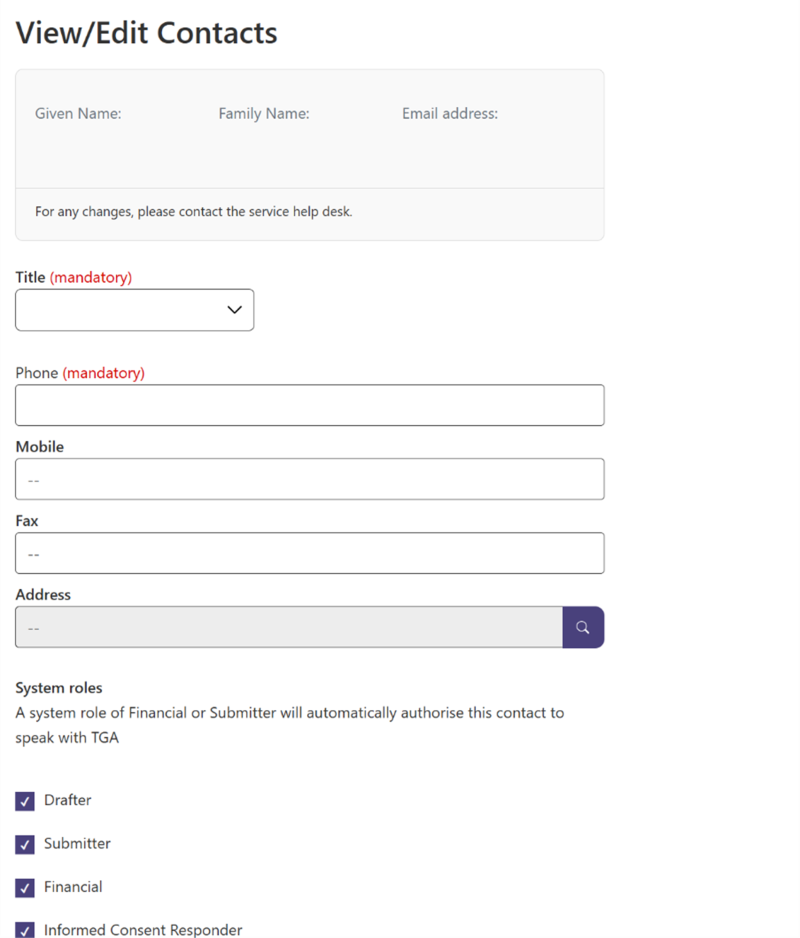
- This will load the ‘View/Edit Contacts’ window.
- At the bottom of the ‘View/Edit Contacts’ window, select the ‘Reissue Invitation’ button.
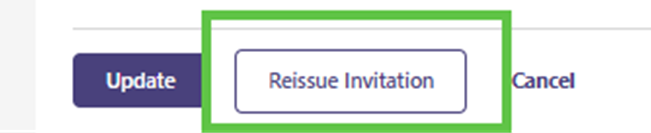
- A confirmation message will appear prompting you to ‘Confirm’ to reissue an invitation to the contact, or ‘Cancel’ to return back to the ‘View/Edit Contacts’ window.